In this lesson, you will:
In this lesson, you will:
One of the simplest ways to store source data for FME Flow workspaces is to publish it to a repository. When the source data for a translation is file-based (rather than a feed or a database), you may publish the data to an FME Flow repository alongside the workspace. This data upload method is fast and straightforward, but it limits future access to the data for other workflows. It's a better practice to publish your data in the Resources folder, separate from the workspace, which you will learn in the next lessons.
Source file datasets are often stored locally on the computer that hosts FME Workbench. However, another server usually hosts FME Flow, so local file paths to datasets usually fail on FME Flow because the data doesn't exist in that location on the FME Flow server.
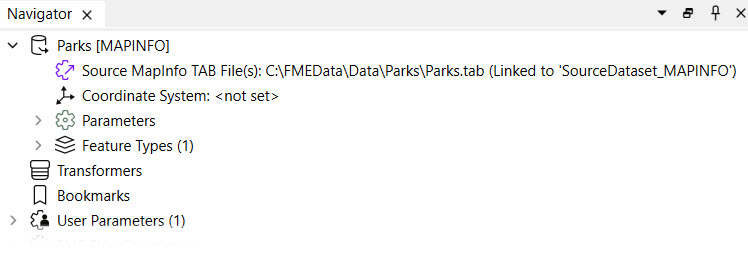
In this workspace, the source dataset is a MapInfo TAB file stored on the local computer.
A MapInfo TAB dataset consists of a series of files (.tab, .dat, .id, .map). When you publish this workspace, the publishing wizard can publish the data files alongside it by simply checking the box labeled "Upload data files."
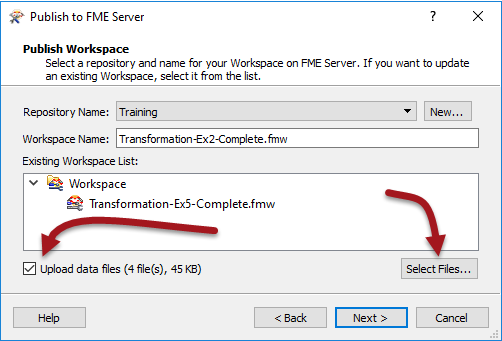
FME automatically selects the files to upload based on what it thinks is necessary to run the translation. If there are other files you wish to upload, or files FME selects that you don't want to upload, the Select Files button allows you to make changes.
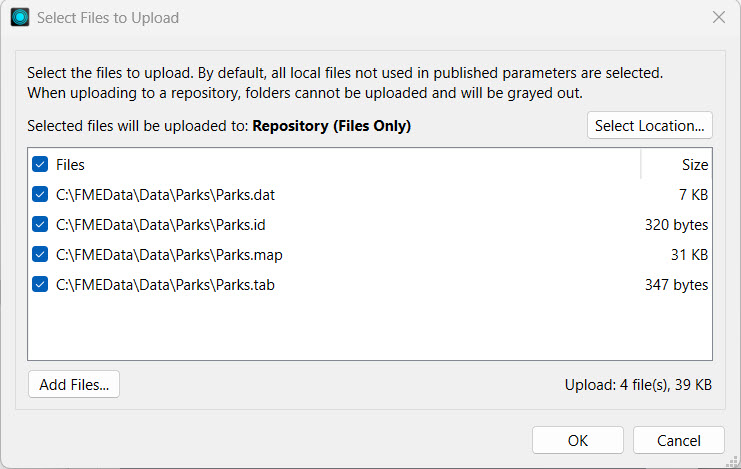
At the top, it also shows that the selected files will be uploaded to the Repository, the same repository folder as the workspace.
Once you complete the publishing process, FME uploads the files to FME Flow, making them accessible alongside this workspace.
When you run a workspace published with its data on FME Flow, the uploaded data is automatically used as the workspace's source data. The $(FME_MF_DIR) parameter references the repository for the selected workspace.
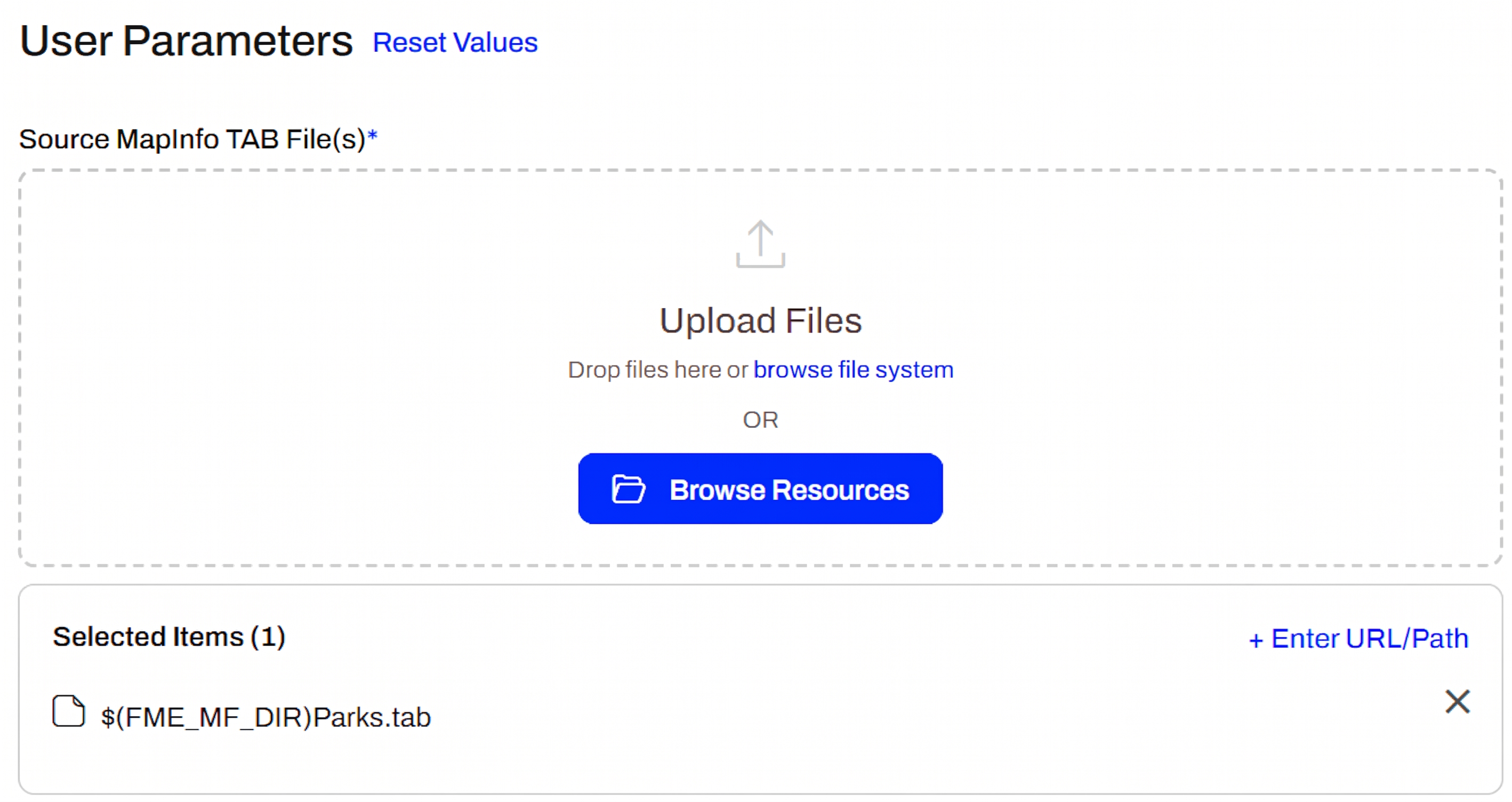
To use the uploaded data in the repository, you do not need to change any other settings; the workspace will run to completion using the published data as its source.
There are some cautions and limitations to consider when you upload data to a workspace repository:

Sven continues working with the same workspace, which clips voting locations to neighborhoods in Vancouver and stores the transformed data in a geodatabase. He is working with the source GML and KML data and is experimenting with finding the best location to store the data when the workspace is run on FME Flow.
For this exercise, follow these steps and help Sven publish the workspace and its source data to a repository on FME Flow, then run the workspace on FME Flow using the published data.
Open the starting workspace (C:\FMEData\Workspaces\DeployWorkflowsWithFMEFlow\publish-data-to-workspace-repository.fmw) in FME Workbench.
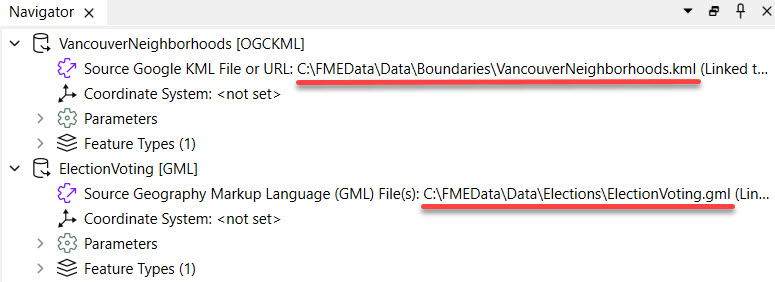
In FME Workbench, expand the parameters for each reader. The source files are stored locally in your lab. For testing on an FME Flow installed locally on your machine, FME Flow can access these files. However, your organization's FME Flow instance usually won't have access to local file systems except for the server on which it is installed.
Click Publish in the top toolbar to open the publishing wizard.

Select the Training repository, create it if needed, and leave the workspace name as the default. Select Upload data files and note that FME automatically selects the three files. Next, click Select Files... to inspect them.
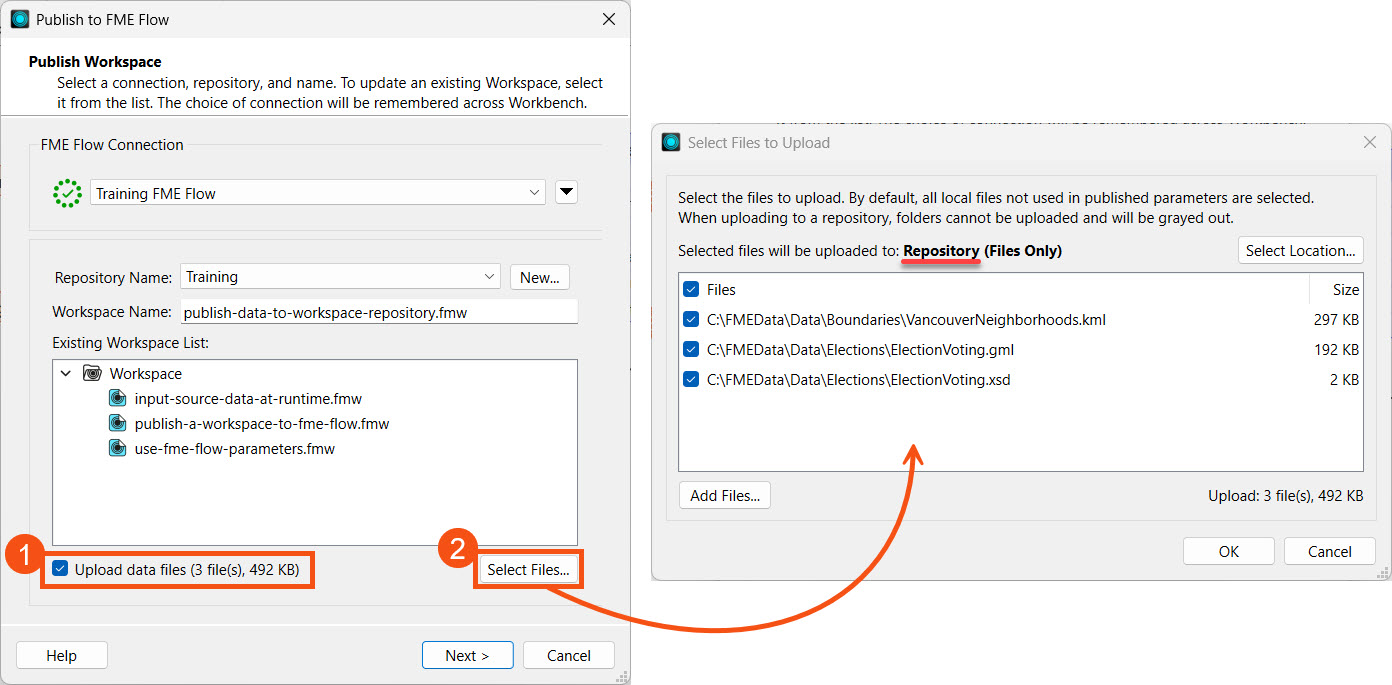
Although the workspace only has GML and KML readers, FME also includes the XSD (XML Schema Definition) file to support the GML file. Check that FME will upload the files to the Repository, click OK, then click Next to proceed.
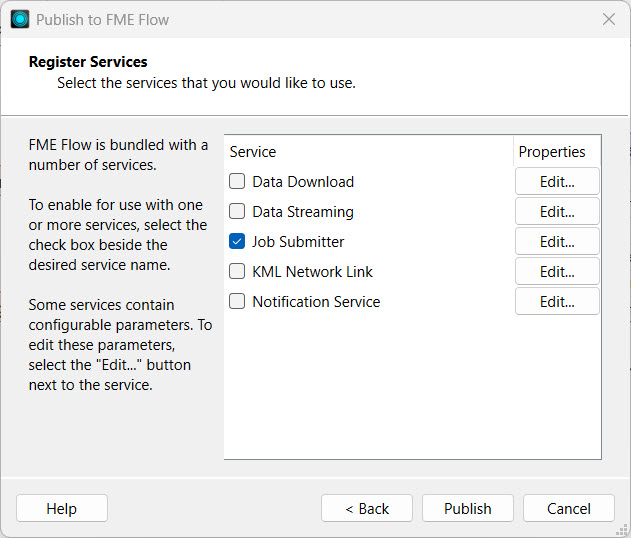
Register the workspace with the Job Submitter service and click Publish.
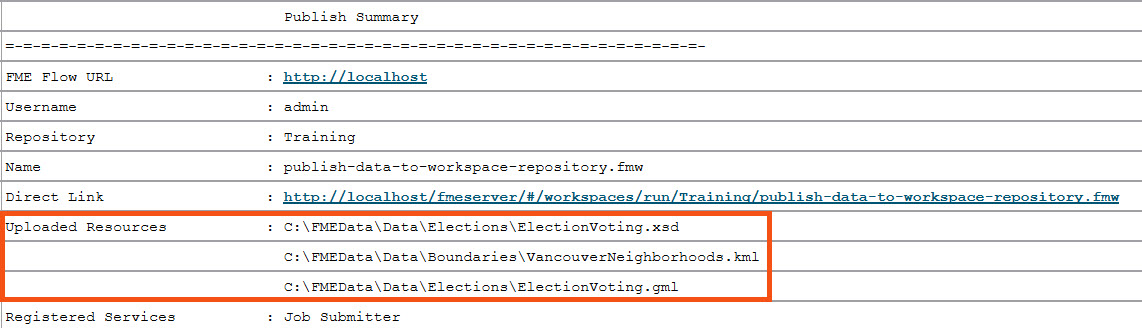
Check the translation log to ensure the publishing process reports the files uploaded to FME Flow.
Navigate to FME Flow. Open the Workspaces tab and click the Training repository to open it.
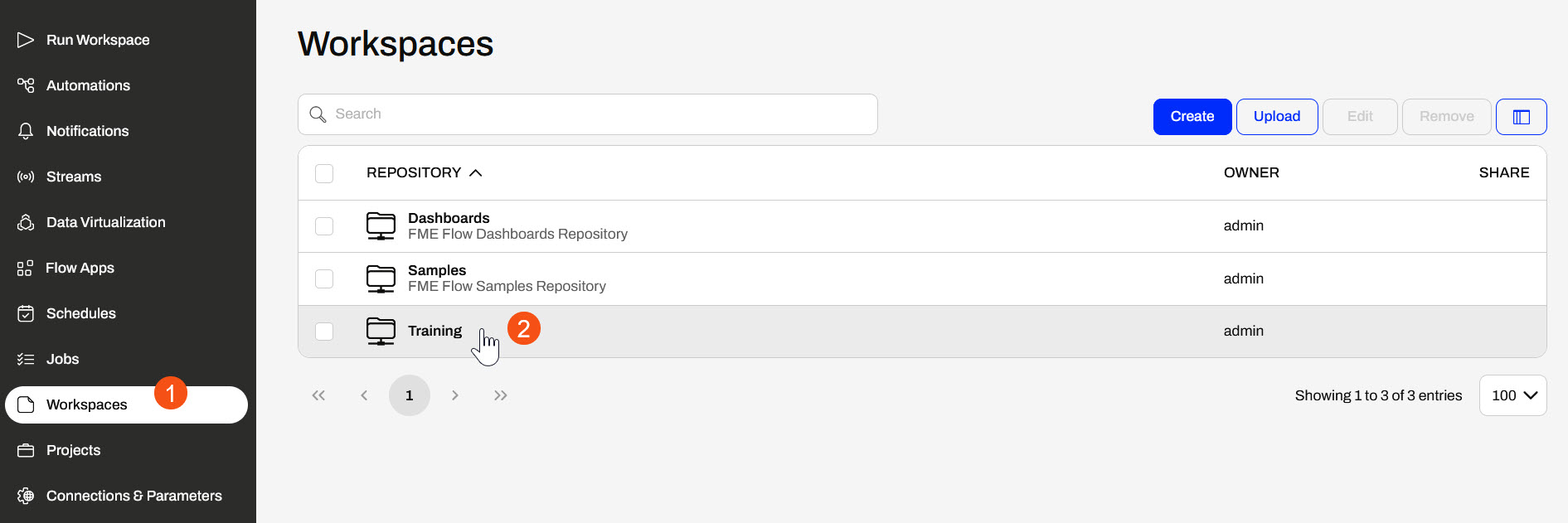
You will see three files listed in the Files column for his workspace and click on them to view them.
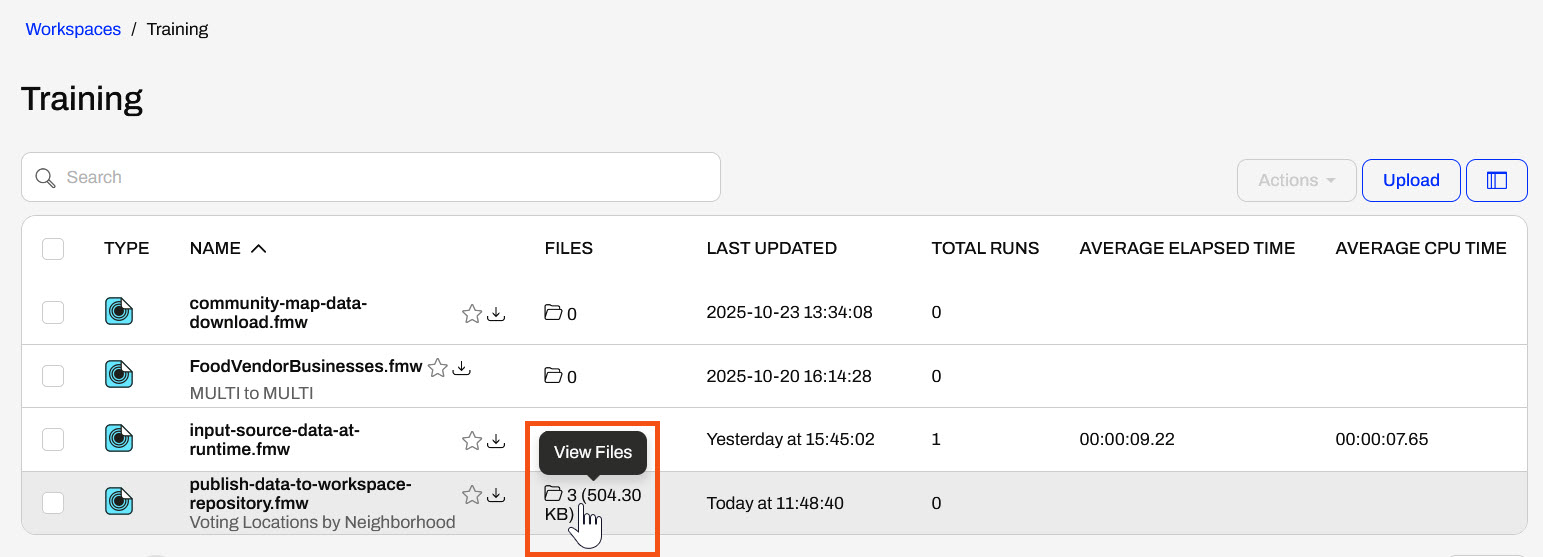
Workspace Files lists the files published to the repository along with the workspace. You've confirmed that the files were successfully published to FME Flow alongside your workspace.
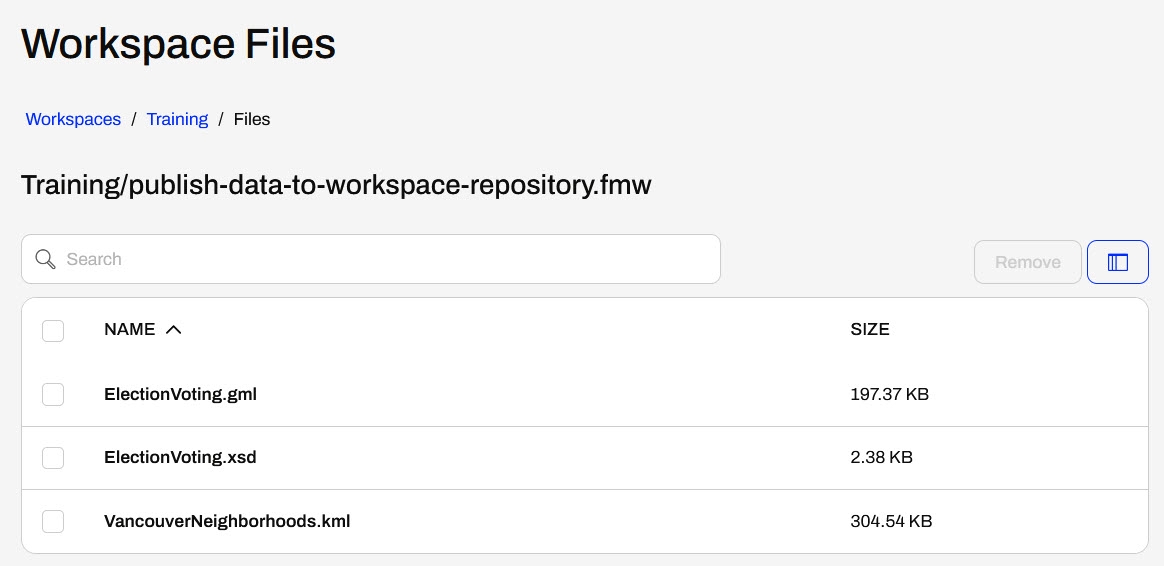
Click Training in the top path to return to the repository's workspace list.
Then, click your workspace to open it on the Run Workspace page.

The Run Workspace page already has the workspace details entered. Scroll down to the User Parameters section. By default, FME Flow selects the repository files for each source file. FME Flow indicates this by the ($FME_MF_DIR) parameter.
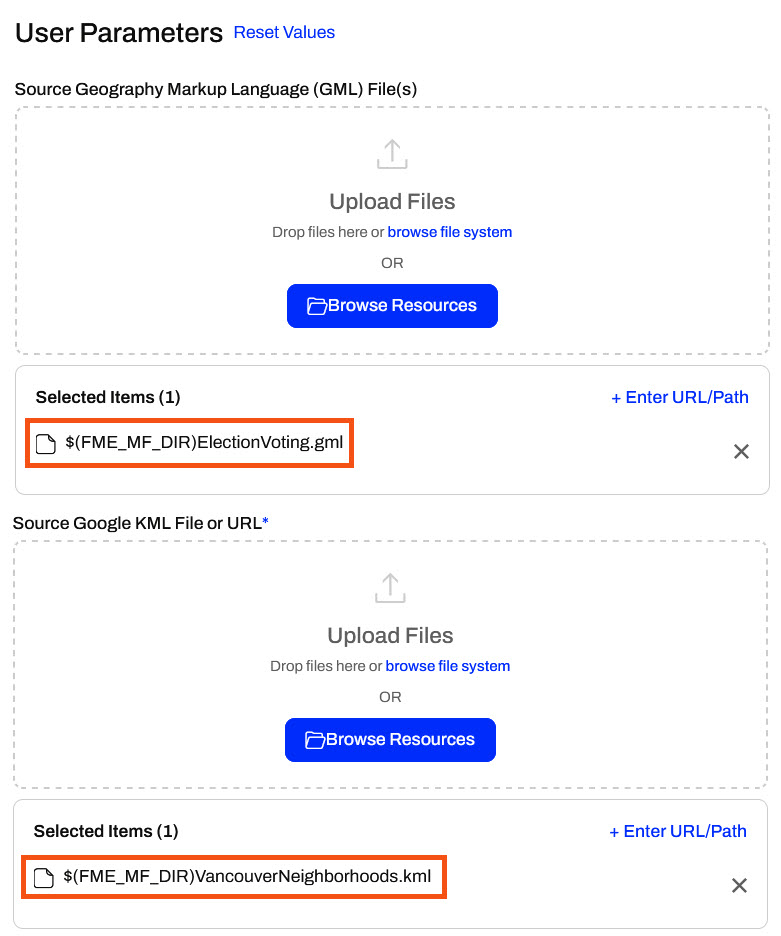
Don't alter any parameters and click Run to run the workspace. The workspace reads the source files from the repository location and runs successfully.
If you have access to the FME Flow server or computer, open a file browser and browse to the location where FME Flow stores the repository data. The default location is C:\ProgramData\Safe Software\FMEFlow\repositories\Training, which is consistent with the Safe Software training machines.
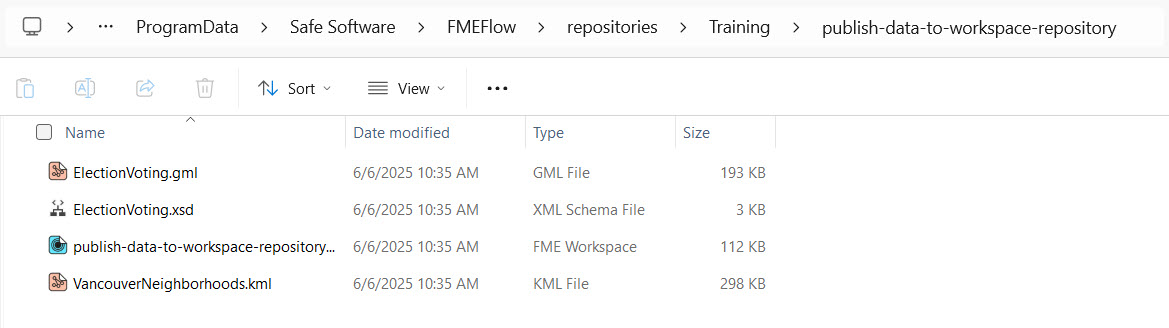
You should see that FME Flow saves each workspace to a separate folder. You can inspect the publish-data-to-workspace-repository folder to see the uploaded datasets.
Windows may hide ProgramData and files in the FME Flow folder. Make sure you turn on hidden files and folders if you wish to view them.
You have successfully published source data to a repository on FME Flow. However, Sven might use the source file data, especially VancouverNeighborhoods.kml, for many workspaces, so storing it multiple times with individual workspaces doesn't make sense. Next, you will learn how to publish data to Resources instead.
One of the simplest ways to store source data for FME Flow workspaces is to publish it to a repository. When the source data for a translation is file-based (rather than a feed or a database), you may publish the data to an FME Flow repository alongside the workspace. This data upload method is fast and straightforward, but it limits future access to the data for other workflows. It's a better practice to publish your data in the Resources folder, separate from the workspace, which you will learn in the next lessons.
Source file datasets are often stored locally on the computer that hosts FME Workbench. However, another server usually hosts FME Flow, so local file paths to datasets usually fail on FME Flow because the data doesn't exist in that location on the FME Flow server.
In this workspace, the source dataset is a MapInfo TAB file stored on the local computer.
A MapInfo TAB dataset consists of a series of files (.tab, .dat, .id, .map). When you publish this workspace, the publishing wizard can publish the data files alongside it by simply checking the box labeled "Upload data files."
FME automatically selects the files to upload based on what it thinks is necessary to run the translation. If there are other files you wish to upload, or files FME selects that you don't want to upload, the Select Files button allows you to make changes.
At the top, it also shows that the selected files will be uploaded to the Repository, the same repository folder as the workspace.
Once you complete the publishing process, FME uploads the files to FME Flow, making them accessible alongside this workspace.
When you run a workspace published with its data on FME Flow, the uploaded data is automatically used as the workspace's source data. The $(FME_MF_DIR) parameter references the repository for the selected workspace.
To use the uploaded data in the repository, you do not need to change any other settings; the workspace will run to completion using the published data as its source.
There are some cautions and limitations to consider when you upload data to a workspace repository:
Sven continues working with the same workspace, which clips voting locations to neighborhoods in Vancouver and stores the transformed data in a geodatabase. He is working with the source GML and KML data and is experimenting with finding the best location to store the data when the workspace is run on FME Flow.
For this exercise, follow these steps and help Sven publish the workspace and its source data to a repository on FME Flow, then run the workspace on FME Flow using the published data.
Open the starting workspace (C:\FMEData\Workspaces\DeployWorkflowsWithFMEFlow\publish-data-to-workspace-repository.fmw) in FME Workbench.
In FME Workbench, expand the parameters for each reader. The source files are stored locally in your lab. For testing on an FME Flow installed locally on your machine, FME Flow can access these files. However, your organization's FME Flow instance usually won't have access to local file systems except for the server on which it is installed.
Click Publish in the top toolbar to open the publishing wizard.
Select the Training repository, create it if needed, and leave the workspace name as the default. Select Upload data files and note that FME automatically selects the three files. Next, click Select Files... to inspect them.
Although the workspace only has GML and KML readers, FME also includes the XSD (XML Schema Definition) file to support the GML file. Check that FME will upload the files to the Repository, click OK, then click Next to proceed.
Register the workspace with the Job Submitter service and click Publish.
Check the translation log to ensure the publishing process reports the files uploaded to FME Flow.
Navigate to FME Flow. Open the Workspaces tab and click the Training repository to open it.
You will see three files listed in the Files column for his workspace and click on them to view them.
Workspace Files lists the files published to the repository along with the workspace. You've confirmed that the files were successfully published to FME Flow alongside your workspace.
Click Training in the top path to return to the repository's workspace list.
Then, click your workspace to open it on the Run Workspace page.
The Run Workspace page already has the workspace details entered. Scroll down to the User Parameters section. By default, FME Flow selects the repository files for each source file. FME Flow indicates this by the ($FME_MF_DIR) parameter.
Don't alter any parameters and click Run to run the workspace. The workspace reads the source files from the repository location and runs successfully.
If you have access to the FME Flow server or computer, open a file browser and browse to the location where FME Flow stores the repository data. The default location is C:\ProgramData\Safe Software\FMEFlow\repositories\Training, which is consistent with the Safe Software training machines.
You should see that FME Flow saves each workspace to a separate folder. You can inspect the publish-data-to-workspace-repository folder to see the uploaded datasets.
Windows may hide ProgramData and files in the FME Flow folder. Make sure you turn on hidden files and folders if you wish to view them.
You have successfully published source data to a repository on FME Flow. However, Sven might use the source file data, especially VancouverNeighborhoods.kml, for many workspaces, so storing it multiple times with individual workspaces doesn't make sense. Next, you will learn how to publish data to Resources instead.
